
Check Notification Settings in HubSpot
Make sure your notifications are turned on.
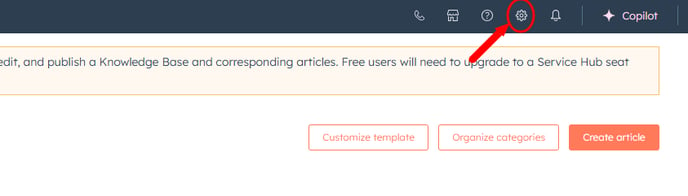
- Go to the Settings (⚙️) in the top-right corner of HubSpot
- Click Notifications in the left sidebar
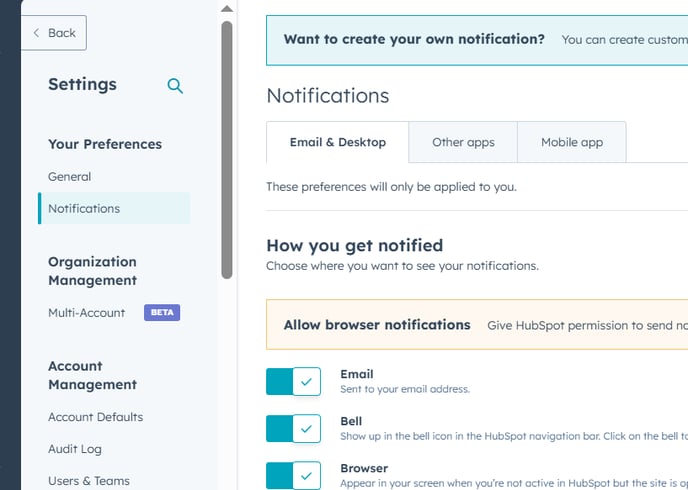
- Review each tab (e.g. Mentions, Assigned to me) and make sure the toggle is ON for the types of notifications you want
Allow Browser Notifications
Enable notifications in your browser:
- Click the lock icon next to the URL in your browser
- Make sure Notifications are allowed
- For Chrome users: Go to chrome://settings/content/notifications and allow https://app.hubspot.com
Check Your Email Settings
If you're not getting email notifications:
- In HubSpot Settings > Notifications > Email tab, make sure email notifications are enabled
- Check your spam/junk folder in your email inbox
- Make sure you're not unsubscribed from HubSpot notification emails
Enable Notifications on the Mobile App
Using the HubSpot mobile app?
- On your phone, go to Settings > Notifications > HubSpot and make sure notifications are allowed
- In the app, go to Settings > Notifications to confirm in-app settings
Test the Notification
Try assigning a task or tagging yourself in a note to test if notifications are working.
Check Your Permissions
You must have the correct user permissions to receive certain notifications. Contact your admin to confirm.
Clear Cache or Try Another Browser
Sometimes the issue is browser-related. Try:
- Clearing your browser’s cache
- Using a different browser (e.g. Chrome, Firefox)
Still Not Working? Contact Support
If you're still not getting notifications, contact HubSpot Support (available for paid plans).