
Common Issues
- Signature doesn’t appear in sales or 1:1 emails
- Signature is missing or broken in email templates
- HubSpot email template shows wrong formatting
- Tokens like
orare not rendering - Custom HTML in the template or signature isn't displaying properly
- Signature looks different on mobile or in certain inboxes (e.g. Outlook)
Step-by-Step Troubleshooting
Check Your Personal Signature Settings (for Sales/1:1 Emails)
Your signature must be set up in your user profile to appear in emails.
To check:
- Go to Settings > General > Email
- Scroll to Email Signature
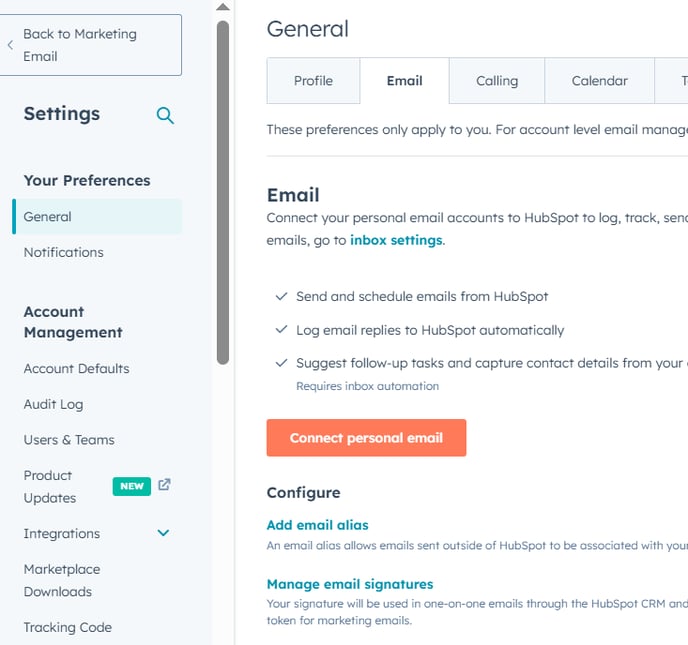
- Use the editor or HTML to format your signature
- Click Save
Tip: Use inline styles (e.g. style="font-size:14px;") for reliable formatting across email clients.
Make Sure Signature Token is in the Template
If you're using an email template or sequence, it must include the
To check:
-
Go to Automation > Templates or Sequences > Templates
-
Open the template
-
Make sure
is placed where you want it to appear -
Save and preview the email with your user token
Note: Only personalized templates (e.g., used in 1:1 sales emails) support the token.
Signature Not Showing in Marketing Emails?
Marketing emails do not automatically include your personal signature.
To add a signature manually:
-
Use the drag-and-drop editor or HTML module
-
Add a custom rich-text block with your formatted signature
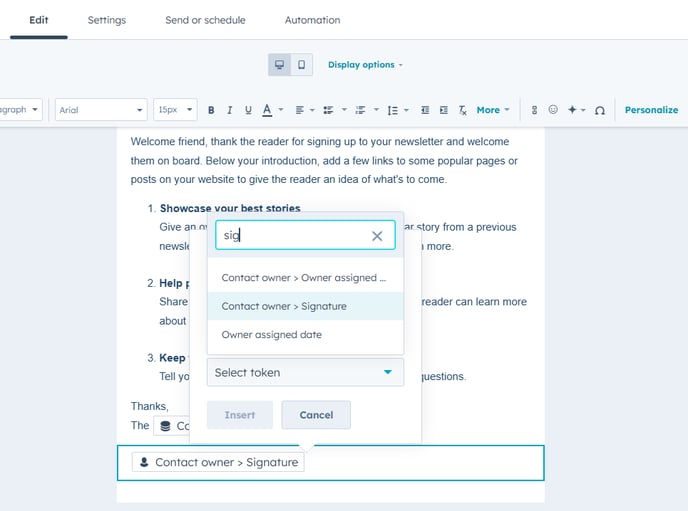
-
If needed, create a saved section that can be reused across email campaigns
Tip: Save your marketing email signature as a snippet or saved module to reuse easily.
Formatting Issues in Signatures or Templates
If your signature or template looks different after sending:
-
Clear any formatting pasted from Word or Docs
-
Use "Clear Formatting" in the editor toolbar
-
Avoid overly complex HTML or CSS — many email clients (especially Outlook) don’t support them
-
Use inline styles (not
<style>tags) -
Stick to web-safe fonts like Arial or Georgia
Always send a test email to yourself to check how the signature renders in real inboxes.
Tokens Not Rendering?
If tokens like
-
Make sure the contact you're testing with has the data filled in
-
For
, make sure:-
The sender is a HubSpot user with a saved signature
-
You're previewing or sending the email as that user
-
Important: Tokens only render when sent to real contacts with valid data.
Rebuild Broken Templates
If the layout is completely off or the code is broken:
-
Clone the template
-
Remove problematic sections
-
Rebuild using drag-and-drop blocks or clean HTML
-
Avoid using multiple font styles, large images, or unclosed tags
Still Need Help?
If your signature or template is still not working:
-
Double-check signature setup in Settings > General > Email
-
Preview/send test email from a real contact record
-
Provide screenshots and contact/email template info to HubSpot Support