
Common Symptoms
-
Clicking the scheduling link shows a 404 or error page
-
The booking calendar doesn’t load or shows no available times
-
Users see a message like “This page isn’t available”
-
Meetings can’t be submitted or give a “failed to book” message
-
Link works for some users but not others
-
Embedded meeting widget is blank or broken
Step-by-Step Troubleshooting Guide
Make Sure the Meeting Link Is Published
If the meeting link isn’t published, it won’t work publicly.
To check:
-
Go to Sales > Meetings
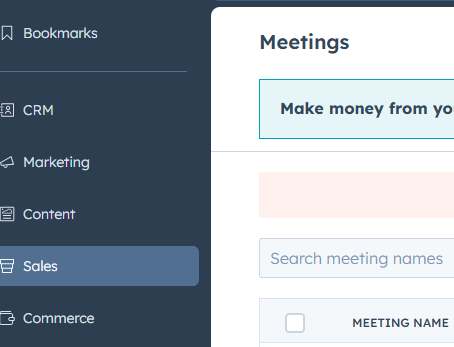
-
Find your meeting link
-
Ensure the status shows "Published"
-
If it says "Draft", click the link and select “Publish”
Only published meeting links can be accessed by prospects or customers.
Confirm the Link URL Is Correct
Make sure you're sharing the correct URL. HubSpot meeting links usually look like this:
https://meetings.hubspot.com/your-username/meeting-name
To verify:
-
Go to Sales > Meetings
-
Copy the full URL from the “Share” button
-
Paste it into a browser to test
Be cautious with shortened URLs or broken links in emails—test before sending.
Check User Access or Permissions
If someone else on your team can't access your meeting link:
-
Confirm they’re not trying to edit your link (only the owner can edit it)
-
If it's a team or round-robin link, make sure all assigned users have:
-
Connected calendars
-
Proper meeting availability configured
-
Links won't work correctly if users in a team link don’t have access or setup completed.
Ensure Calendar Is Properly Connected
HubSpot can't show your availability if your calendar isn’t synced.
To check:
-
Go to Settings > General > Calendar
-
Make sure your Google or Outlook calendar is connected
-
If it’s not, click Connect Calendar
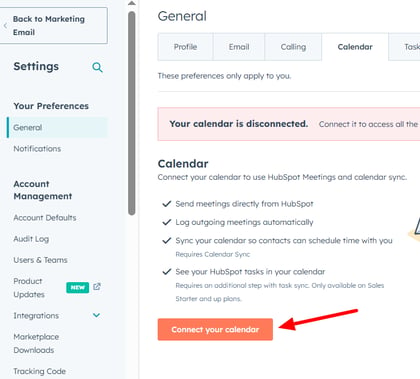
A disconnected or expired calendar sync will make your meeting link appear blank or broken.
Review Your Availability Settings
If your link loads but shows no available times:
-
Go to Sales > Meetings > Edit Link
-
Under "Availability", check:
-
Days and hours selected
-
Buffer time between meetings
-
Minimum notice time
-
-
Make sure you're not fully booked during the availability range
Test by temporarily expanding your availability to confirm it works.
Fix Embedded Meeting Widgets Not Loading
If you embedded the meeting link on your website and it's not displaying:
-
Confirm the embed code is copied correctly from the Share > Embed option
-
Make sure the website platform supports iframes
-
Use HTTPS only — insecure (HTTP) pages may block content
Tip: Use a fresh incognito browser window to test your embedded widget.
Refresh or Regenerate the Link if Needed
If the link is old or was copied from an inactive user:
-
Go to Sales > Meetings
-
Clone the meeting link
-
Publish the new version and share the updated link
This is useful when ownership of the link has changed (e.g., employee left).
Still Need Help?
If your meeting link still isn’t working:
-
Test the link in multiple browsers (Chrome, Safari, Firefox)
-
Send a test link to your own email to check behavior
-
Contact HubSpot Support with:
-
The broken link URL
-
Screenshot of the issue
-
Your connected calendar type (Google or Outlook)
-