
Common Symptoms
- A user can’t see or open a report.
- You can’t share a report with your team.
- The “Edit” button is greyed out or missing.
- A report on a shared dashboard isn't visible to others.
- Permissions errors or access denied messages.
Step-by-Step Solutions
Confirm Report Visibility Settings
When saving or editing a report, HubSpot allows you to choose who can access it.
To check visibility:
-
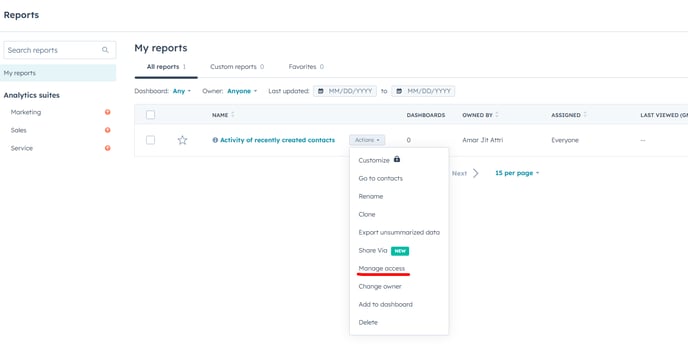
Go to Reports > Reports.
-
Click the Actions (⋯) menu next to the report.
-
Select Manage Access or Edit.
-
Review the visibility options:
-
Private to owner only
-
Your team
-
Everyone in your account
-
Check Dashboard Access (if report is on a dashboard)
If the report is on a shared dashboard, the dashboard’s sharing settings control access.
To adjust dashboard sharing:
-
Go to Reports > Dashboards.
-
Open the dashboard in question.
-
Click Actions > Manage Access (top-right).
-
Share with:
-
Specific users or teams
-
Everyone in the account
-
External users via shareable link
-
Note: Users must have the right object permissions to see data inside the reports.
Confirm User Permissions
Users need certain permissions to view, edit, or create reports.
To check:
-
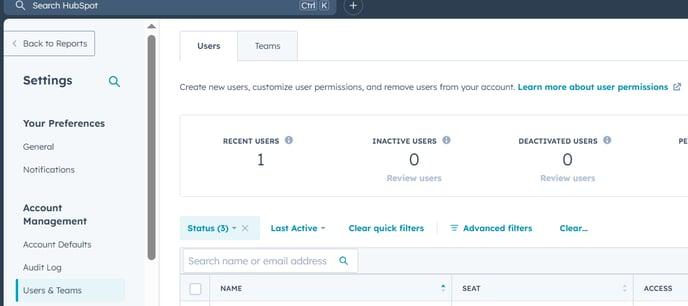
Go to Settings > Users & Teams.
-
Click on the user’s name.
-
Under CRM and Tools Permissions, check:
-
✅ Reports: View or Edit access
-
✅ Dashboards: View or Edit access
-
✅ Object access (Contacts, Deals, Tickets, etc.)
-
If the user doesn’t have access to the objects used in the report (e.g., Deals), they won’t see any data.
Ownership-Based Restrictions
If reports or dashboards are owner-restricted, users will only see:
-
Records they own
-
Data tied to their team, if teams are enabled
Solution: Update filters to show all owners, or remove owner-based filters in the report.
External Sharing Not Working?
If you're sharing a report externally (via link or email):
-
Confirm the dashboard or report is set to public or shared
-
Use Actions > Share > Copy link (for dashboards only)
-
Individual reports cannot be shared via link unless added to a shared dashboard
Can’t Edit a Shared Report?
Users may not be able to edit a report if:
-
It’s a default (prebuilt) HubSpot report → You’ll need to clone it
-
It was created by another user and set to “Private”
-
The user only has View-only permission for reports or dashboards
Solution: Clone the report:
-
Go to the Actions (⋯) menu next to the report
-
Select Clone
-
Edit and resave as needed
Still Need Help?
-
Capture the report name, user name, and error
-
Check if the report is on a shared dashboard
-
Contact your HubSpot Super Admin or HubSpot Support