
Common Merge Problems & How to Fix Them
Merge Button Not Visible
Cause: You may not have the right permissions.
Fix:
- Ask your HubSpot Admin to check your user permissions:
-
- Go to Settings > Users & Teams
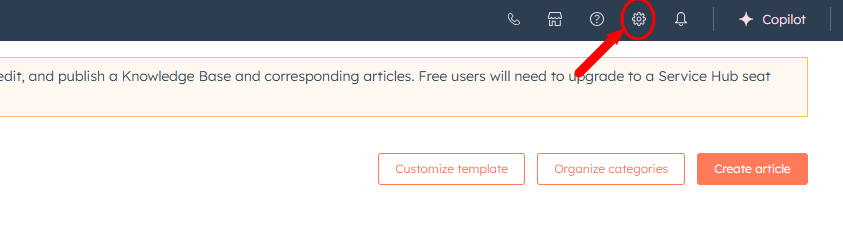
- Make sure your role has “Edit” access to the object type (Contact/Company/Deal)
- If you're trying to merge custom objects, ensure the object allows merges
Can’t Merge Because Records Are Associated with Different Data
Common error: These records can’t be merged because they belong to different owners, pipelines, or integrations.
Fix:
- Review both records:
-
- Compare owner, lifecycle stage, pipeline, and deal stage
- Standard practice: Merge the record with the most accurate or complete data into the other
- If necessary, standardize key fields manually before merging
Merge Not Completing / Merge Fails After Starting
Cause: System or sync issues can interrupt merges.
Fix:
- Wait a few minutes and try again
- Clear your browser cache or try in Incognito Mode
- If using an integration (e.g., Salesforce), verify that:
-
- The sync is not blocking merges
- The external system isn’t re-creating duplicates after merging in HubSpot
Merge Attempt Results in Error or No Change
- Possible causes:
-
- One of the records has been deleted, archived, or already merged
- HubSpot is experiencing a temporary sync or API issue
Fix:
-
- Refresh the page and search for both records again
- Check Recycle Bin to ensure the record still exists
- Wait and retry later (HubSpot may resolve background sync issues automatically)
Merge Didn’t Combine All Data
Fix:
- Only certain fields are retained during merge:
-
- HubSpot keeps the values from the primary record
- Email, contact owner, and lifecycle stage may be overwritten
- After merging:
- Review the resulting record manually
- Restore or re-enter any data that was missed
Important: Timeline activities (calls, notes, emails) from both records are preserved.
How to Properly Merge Records in HubSpot
- Open the record you want to keep as primary
- Click Actions > Merge
- Search for the duplicate record
- Select it and confirm
- Wait for the confirmation message that the merge is complete
Still Can’t Merge?
- Ensure you’re merging same-type records (contacts with contacts, not contact with company)
- If using an integration like Salesforce or a third-party tool, check for sync conflicts
- Contact HubSpot Support if the issue persists and your account includes support access