
This guide walks you through how to identify and fix formatting problems in HubSpot marketing emails only.
Common Issues
-
Text or buttons are misaligned
-
Columns don’t stack correctly on mobile
-
Fonts appear differently in the recipient's inbox
-
Extra white space or inconsistent padding
-
Images are not aligned or scaled properly
-
Emails look fine in the editor but break when received
-
Outlook displays emails incorrectly
How to Fix Formatting Issues in Marketing Emails
Use HubSpot's Email Preview & Test Tools
Before sending any email:
- In the email editor, click Preview
- Toggle between desktop and mobile view
- Click Send Test Email and check it in:
-
-
Gmail
-
Outlook
-
Apple Mail (mobile and desktop)
-
Testing across multiple inboxes helps catch rendering issues specific to each email client.
Fix Mobile Display Problems
Most email formatting issues appear on mobile devices due to responsiveness.
-
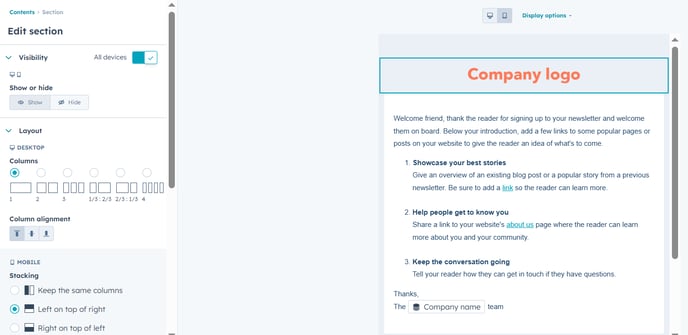
Click on a section or column > open Mobile Settings
-
Ensure columns are set to stack on mobile
-
Reduce or adjust padding/margins to avoid squeezed or misaligned content
-
Set buttons and text blocks to 100% width
Avoid placing multiple columns side-by-side unless optimized for mobile.
Clear Formatting When Copy-Pasting Content
Pasting from Word, Google Docs, or websites can introduce hidden formatting.
To fix:
-
Highlight the text in the email editor
-
Click “Clear Formatting” (paint roller icon)
-
Reapply styling using HubSpot's native toolbar
Always use plain text paste (Ctrl+Shift+V / Cmd+Shift+V) when copying content into emails.
Use Standard, Web-Safe Fonts
Custom or fancy fonts may not be supported by many email clients.
-
Stick to fonts like Arial, Helvetica, Times New Roman, or Georgia
-
Set a fallback font in case the primary one fails:
CSSCopyeditfont-family: "YourFont", Arial, sans-serif;
Always test custom fonts thoroughly before using them in live sends.
Fix Image Formatting
Poorly sized or unresponsive images can break the layout.
-
Use images that are under 1MB
-
Set images to a fixed width (e.g., 600px for full-width banners)
-
Use the alignment tools in the editor to center or left-align images
-
Add padding to separate images from text or buttons
On mobile, ensure images are scaled correctly and don't overflow the screen.
Use Inline CSS in Custom HTML Emails
If you’re using custom code:
-
Use inline styles only (external CSS and
<style>tags won’t work in most inboxes) -
Use tables for layout instead of divs — especially for Outlook support
-
Avoid JavaScript and advanced CSS (media queries may not be supported)
Tools like Litmus or Email on Acid can preview your code in dozens of inboxes.
Reset or Rebuild Broken Sections
If the issue persists:
-
Duplicate the email
-
Rebuild the broken section using a default drag-and-drop layout
-
Remove any custom code or copied content that might be causing the issue
Starting fresh can help eliminate hidden formatting errors.
If formatting issues continue after following these steps:
-
Send a test email to yourself and your team
-
Compare how it looks in different inboxes
-
Reach out to HubSpot Support with:
-
A screenshot of the issue
-
The email name and send method
-
Description of what’s not displaying correctly
-