
Step-by-Step Troubleshooting for Filters in Reports & Dashboards
Understand Where the Filter Is Applied
In HubSpot, filters can be applied in two places:
| Location | Affects |
|---|---|
| Report Filters | Filters apply only to that individual report |
| Dashboard Filters | Apply across all reports in the dashboard unless overridden |
If the data in your report doesn’t look right in the dashboard but looks fine standalone, the issue is likely with the dashboard filter.
Test the Report Outside the Dashboard
-
Go to Reports > Reports
-
Open the report you're having issues with (not inside the dashboard)
-
Review the results
If it shows the correct data here, your dashboard filter is causing the conflict.
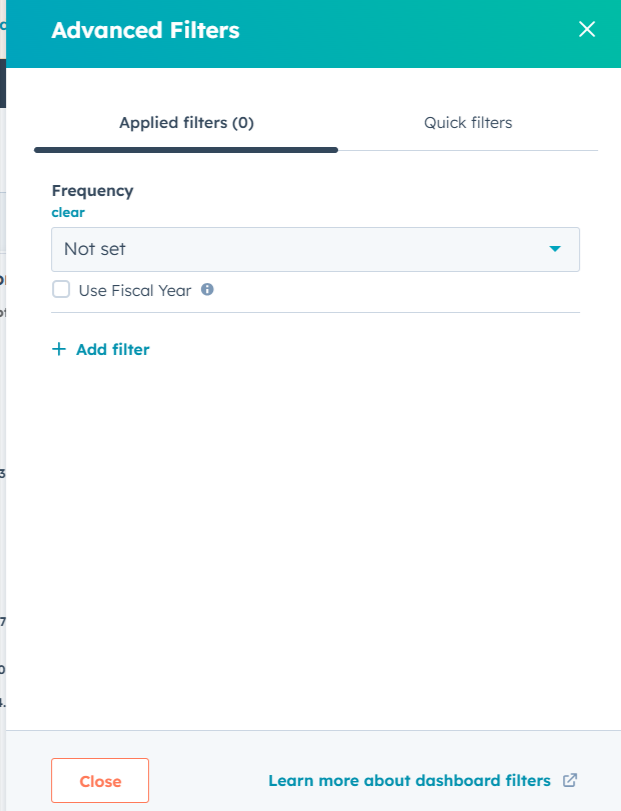
Check Dashboard Filters
To view or adjust dashboard-level filters:
-
Open the dashboard
-
Click the "Filter dashboard" button at the top
-
Review filters such as:
- Date range
- Deal Owner/Contact Owner
- Teams or Pipelines
-
Either remove the filters or adjust them to match your reporting goal
-
Click Apply filters
Tip: Dashboard filters override report filters unless the report is set to ignore them.
Configure Report to Ignore Dashboard Filters
You can prevent a report from being affected by dashboard filters:
- Click the pencil/edit icon on the report inside the dashboard
- In the filter section, toggle “Use dashboard filters” off
- Save the report
This makes the report rely only on its own filters and ignore global dashboard settings.
Review Report-Specific Filters
When editing a report:
- Click “Edit” from the report actions menu
- Go to the Filters tab
- Check for:
-
-
Incorrect or outdated properties (e.g., using "Close Date" when you meant "Create Date")
-
Overly restrictive conditions (e.g., "Owner is John" when John has no records)
-
Field mismatches (e.g., using a text filter on a dropdown field)
-
-
Adjust your logic and preview the data
-
Click Update to save changes
Watch Out for Date Filter Conflicts
A common issue: both the dashboard and report have conflicting date filters.
Example:
-
Report filter: “Close Date is in this year”
-
Dashboard filter: “Close Date is in last 90 days”
These can cancel each other out and return no results. Decide where to apply the filter — dashboard or report, not both.
Use the Correct Filter Logic (AND vs OR)
HubSpot reports use AND logic by default. If you're expecting results where either of multiple conditions is true:
- Use “Add filter group” to apply OR logic
- Be cautious with filters like:
-
-
“Lifecycle stage is Customer” AND “Industry is Healthcare” — only returns matches for both
-
Refresh & Clear Cache
If everything looks correct but your filters still aren’t applying:
-
Refresh the dashboard
-
Clear your browser cache and cookies
-
Try viewing in incognito/private mode to rule out extension conflicts
Still Stuck?
If your report or dashboard still doesn’t filter correctly:
-
Note the filter criteria
-
Check for user permissions and property visibility
-
Contact HubSpot Support or your system admin with a screenshot of the report and filter setup