
Common Symptoms
- Emails are not sending from CRM or connected inbox.
- Emails sent from your inbox are not logging in HubSpot.
- “Email failed to send” or “Message not delivered” errors.
- Email logging/tracking box is checked, but nothing appears in the contact timeline.
- Recipients are not receiving marketing emails.
Step-by-Step Troubleshooting
Check Email Integration Status
Your email account must be properly connected to HubSpot for emails to send and log correctly.
To check:
-
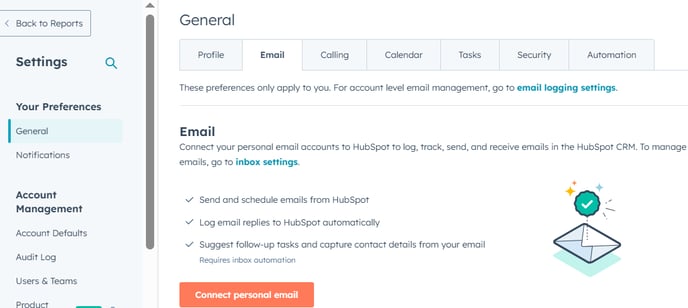
Go to Settings > General > Email.
-
Under Connected Emails, verify your inbox is listed and marked as connected.
-
If it’s not connected:
-
Click Connect personal email (for 1:1 emails)
-
Or Connect team email (for shared inboxes)
-
Tip: If you use Gmail or Outlook, reauthorize the connection if it's expired.
Ensure Email Logging/Tracking is Enabled
When sending emails:
- Make sure “Log” and/or “Track” are checked (especially if using HubSpot Sales extension in Gmail or Outlook).
- In Settings > General > Email > Email Logging, check if logging settings are enabled for:
-
-
Specific domains
-
Specific email types (e.g., replies, new emails)
-
Make sure you're not excluding domains that should be logged.
Email Not Sending? Check for Errors
-
Ensure you haven’t reached your daily send limit (especially on free or trial accounts).
-
If sending from a workflow or sequence:
-
Verify the contact has a valid email address.
-
Check the email type (marketing vs. transactional).
-
-
Review the bounce error or send failure message.
Common causes:
-
Invalid or blacklisted email address
-
Recipient unsubscribed or marked a previous email as spam
-
Your domain isn't authenticated
Contact Timeline Not Showing Logged Emails?
If you're sending emails from outside HubSpot (e.g., Gmail), make sure you're using:
-
The HubSpot Sales Extension for Gmail/Outlook
-
The email is sent from a connected inbox
-
The email address matches a HubSpot contact
Emails won’t log if:
-
Sent from a non-connected inbox
-
Contact doesn't exist in HubSpot
-
Logging is disabled for that domain
Check Permissions
Users must have permission to send emails and view contact records.
Go to:
Settings > Users & Teams > [User]
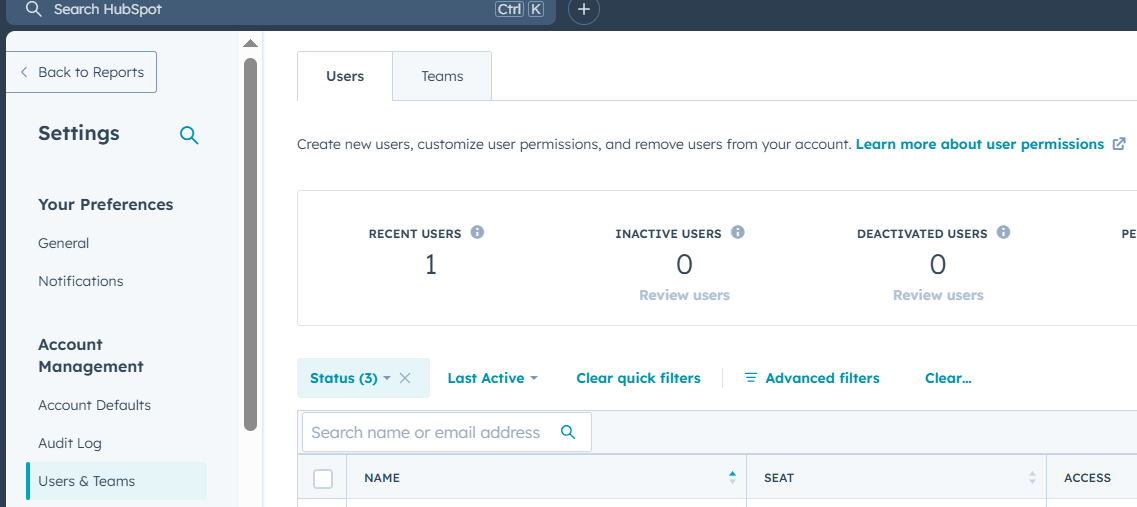
Verify that the user has:
-
CRM Email Access
-
Contact/Company/Deal view & edit permissions
-
Communication permissions (in Sales Hub)
Authenticate Your Sending Domain (for Marketing Emails)
If marketing emails aren't sending or are going to spam:
-
Go to Settings > Website > Domains & URLs.
-
Check if your email sending domain is authenticated (SPF, DKIM, DMARC).
-
If not, follow HubSpot’s instructions to set up DNS records with your domain provider.
This improves deliverability and helps avoid spam filters.
Check Spam, Bounces & Unsubscribes
If emails are sending but not arriving:
-
The recipient may have unsubscribed, marked you as spam, or bounced previously.
-
Check the contact’s record > Email tab for bounce or unsubscribe history.
You cannot send marketing emails to:
-
Unsubscribed contacts
-
Contacts who have hard bounced
Still Need Help?
If emails still aren't working after these steps:
-
Take a screenshot of your error
-
Note the email type (1:1, workflow, sequence, marketing)
-
Contact HubSpot Support or your system administrator