
Step-by-Step Troubleshooting Guide
Check Dashboard Filters
Dashboards can have global filters that apply to all reports inside them.
- Go to your dashboard.
- Click the “Filter dashboard” button at the top.
- Look for:
-
- Date range filters (e.g., Last 30 days vs. All time)
- Owner filters (e.g., only showing one sales rep)
- Team filters
- Remove or adjust filters as needed.
- Click “Apply filters” to refresh the data.
Tip: If a report looks fine outside the dashboard but incorrect inside, a dashboard-level filter is likely the cause.
Check Individual Report Filters
Each report also has its own filters, which may override dashboard filters.
To verify:
- Hover over the report and click “Edit”.
- Review the filters tab inside the report editor.
- Common filter issues:
-
- Wrong date property selected (e.g., using Create Date instead of Close Date)
- Filters too narrow (e.g., Owner = John but no records match)
- Filters missing (no restriction = too much noise)
After making changes, click Update to save and refresh the dashboard.
Confirm Data is Up to Date
Data may appear incorrect if it’s not yet updated, especially if:
- New records were added recently
- You’re using lists, workflows, or calculated fields (which may take a few minutes to update)
- You’re importing data and it's still processing
Try refreshing your browser, or wait a few minutes and reload the dashboard.
Check Visualization Settings
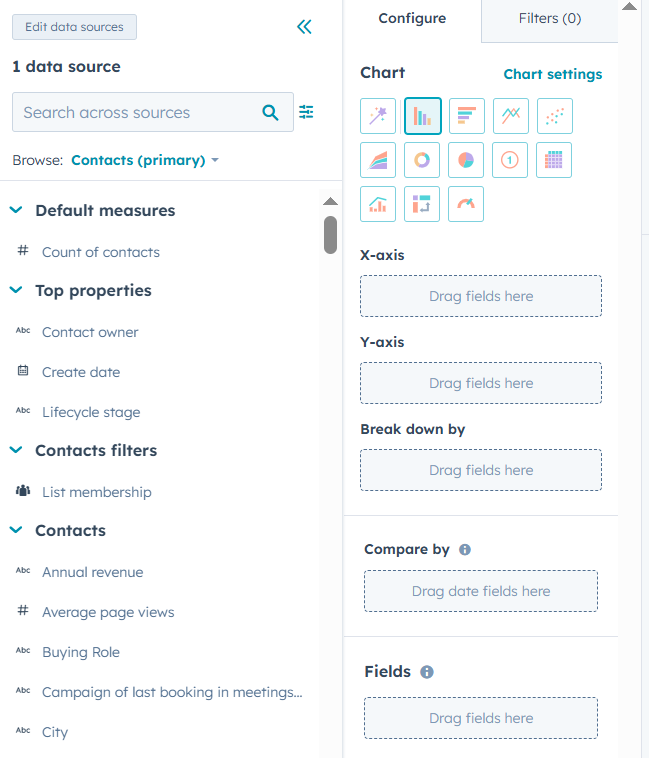
Sometimes, the report logic is correct but the chart type or grouping creates confusion.
- Click Edit on the report.
- Review:
-
- X/Y axes
- Grouping fields (e.g., grouping by Owner vs. Stage)
- Visualization type (bar, table, line chart, etc.)
- Switch to Table View temporarily to confirm the raw numbers.
Validate Associated Records
Some reports rely on object associations (e.g., Contacts associated with Deals).
If the data looks empty or low:
- Open individual records to ensure proper associations.
- Use filters like "Deal is associated with Contact" to verify connected data.
Check Permissions and Visibility
If you or a team member sees incomplete data:
- Make sure you have access to all relevant records (contacts, deals, etc.).
- Reports and dashboards can be limited by:
-
- User permissions
- Team filters
- Ownership rules
Ask an admin to review your access settings in Settings > Users & Teams.
Try Opening the Report Outside the Dashboard
If you're unsure whether the issue is with the report or the dashboard:
- Go to Reports > Reports
- Open the report outside the dashboard
- Compare the data to the dashboard version
If the standalone report looks right, the problem is almost certainly a dashboard filter.
Still Need Help?
If your dashboard still doesn’t look right:
-
Document the report name(s)
-
Take screenshots of filters and settings
-
Contact HubSpot Support or your internal HubSpot admin