
Common Scenarios
-
Emails sent from HubSpot aren’t showing in the Outlook “Sent” folder
-
Meetings scheduled via HubSpot aren’t appearing on your Outlook calendar
-
Contact or CRM activity is missing in Outlook
-
Email threads aren’t syncing between HubSpot and Outlook
-
Tracking or logging isn’t working for Outlook emails
Step-by-Step Troubleshooting Guide
Confirm That Outlook Is Properly Connected to HubSpot
To function correctly, HubSpot needs an active, authenticated connection to your Outlook account.
To check:
-
Go to Settings > General > Email
-
Under Connected Inboxes, confirm your Outlook account is connected
-
If not, click Connect personal email and choose Office 365 / Outlook
-
Follow the steps and give permission to sync emails, calendars, and contacts
Outlook must be connected using a supported version of Microsoft 365 or Exchange Online.
Check Calendar Sync (For Meeting & Calendar Issues)
If meetings booked in HubSpot aren’t appearing in Outlook:
-
Go to Settings > General > Calendar
-
Make sure your Outlook calendar is listed as Connected
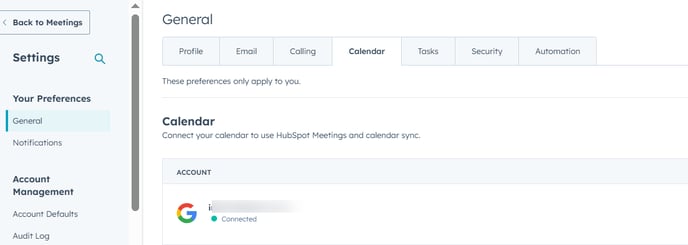
-
If disconnected or expired, click Reconnect
-
After reconnecting, test by booking a new meeting from your link
Note: HubSpot can only sync with primary calendars. Sub-calendars or shared calendars may not reflect updates.
Emails Not Logging or Appearing in Outlook?
If you sent emails from HubSpot and don’t see them in Outlook’s Sent folder:
-
Check that email logging and tracking are turned on:
- In the email composer, make sure “Log” and/or “Track” are enabled
- Go to Settings > General > Email Logging and ensure your domain is whitelisted
-
Confirm the email address matches exactly between HubSpot and Outlook
HubSpot logs emails to the CRM, not always to Outlook folders unless you're using the HubSpot Sales Outlook add-in.
Install (or Reinstall) the HubSpot Sales Outlook Add-In
If changes aren’t syncing either way, the issue may be with the Outlook add-in.
To check:
-
In Outlook, go to Home > Get Add-ins
-
Search for HubSpot Sales
-
Install or reinstall the add-in
-
Log in using your HubSpot credentials
The Outlook add-in enables logging, tracking, and two-way sync of emails and meetings.
Log Out and Back Into HubSpot and Outlook
Session conflicts can block syncs. To reset:
-
Sign out of both HubSpot and Outlook completely
-
Close the browser or app
-
Log back into both platforms
-
Send a test email or calendar update to check
Clear Local Cache or Browser Extensions (if using Outlook Web)
If you're using Outlook Web and seeing issues with HubSpot functionality:
-
Clear browser cache
-
Disable browser extensions, especially ad blockers or privacy tools
-
Try accessing Outlook in a private/incognito window
Still Need Help?
If changes still aren’t reflected:
-
Try removing and re-adding the Outlook connection
-
Check that you're using a supported Outlook version (Microsoft 365 or Exchange Online)
-
Contact HubSpot Support with:
-
Description of what’s not syncing
-
Screenshots of missing items
-
Confirmation of your current sync settings
-