
Common Symptoms
- The “Create deal” button is missing or unclickable
- You get an error when saving a new deal
- You can't change certain fields in an existing deal
- Deal edits are blocked with a message like "You don’t have permission"
- Custom fields can't be updated or appear disabled
- Users can’t see or change deal stages
Step-by-Step Troubleshooting Guide
Check Your Deal Permissions
Most creation/editing issues are caused by insufficient user permissions.
To verify:
- Go to Settings > Users & Teams
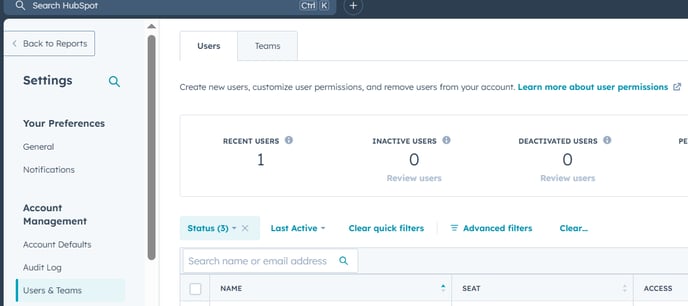
- Select the user having trouble
- Under CRM > Deals, check:
- View access – should be “Owned only”, “Team only”, or “Everything”
- Edit access – should include the necessary level to make changes
- Create access – must be enabled to create new deals
Admins can access all deals by default. Non-admins may be restricted by ownership or team.
Check Required Properties on Deal Creation
HubSpot may block you from saving a deal if required fields are missing.
To check:
- Go to Settings > Objects > Deals > Record Customization
- Click on "Set default properties for deal creation"
- Review the list of required fields
- Make sure these are filled out when you try to create or edit a deal
If a required property is hidden in the UI or empty, HubSpot will prevent the deal from being saved.
Editing a Deal in a Read-Only Pipeline?
Some users may not be allowed to edit deals in certain pipelines.
To check:
- Go to Settings > Objects > Deals > Pipelines
- Select the pipeline
- Ensure the user has permission to edit deals in this pipeline
If you have a team pipeline, make sure team members are assigned to that pipeline or have edit access.
Check for Workflow or Automation Restrictions
Some automations can lock certain deal properties.
To investigate:
- Go to Automation > Workflows
- Look for any workflows that:
- Auto-update or lock deal fields
- Revert changes to the deal stage or ownership
- Temporarily pause the workflow to test if the issue resolves
Some companies use workflows to enforce business rules—check with your admin if this applies.
Browser or Extension Issues (UI-Related)
Sometimes, HubSpot UI problems are due to your browser setup.
Try the following:
- Clear your browser cache and cookies
- Disable any browser extensions (especially form-fillers or blockers)
- Open HubSpot in a private/incognito window
- Try using a different browser (e.g., Chrome, Firefox)
This can rule out front-end glitches that may block form submission or editing.
Still Need Help?
If you're still unable to create or edit deals:
- Ask your HubSpot admin to verify your user permissions
- Confirm all required fields are being filled
- Contact HubSpot Support with:
- Your user email
- Deal name or ID (if applicable)
- Screenshot or video of the is