
Common Symptoms
-
Meetings created in your calendar don't appear in HubSpot
-
Contacts aren't logging scheduled meetings
-
HubSpot Meetings tool shows incorrect or no availability
-
Appointments booked via meeting links aren’t appearing in your calendar
-
You receive a "Calendar not connected" message in HubSpot
Step-by-Step Troubleshooting Guide
Check If Your Calendar Is Connected
HubSpot can only sync meetings and availability from a properly connected calendar.
To verify:
-
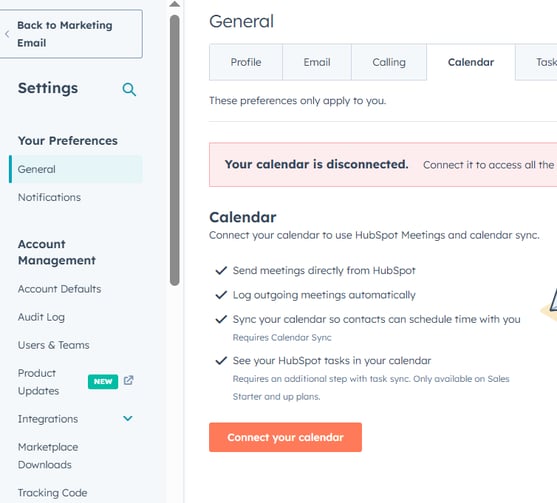
Go to Settings > General > Calendar
-
Check that your Google Calendar or Outlook Calendar is shown as Connected
If it says “Not connected” or shows an error:
-
Click Connect calendar
-
Follow the prompts to authorize your calendar
Tip: Make sure you log in with the same account you use to manage meetings.
Reauthorize Calendar Permissions
Sometimes sync issues occur due to expired permissions or token errors.
To fix:
-
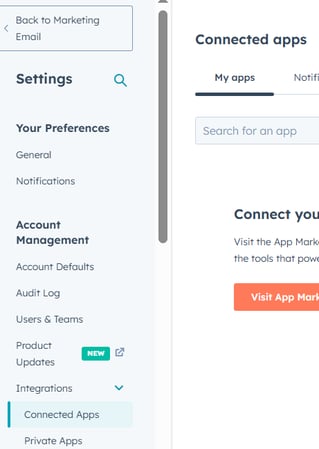
Go to Settings > Integrations > Connected Apps
-
Find your calendar provider (Google/Outlook)
-
Click the Actions menu (⋯) and select Reconnect or Remove
-
Reconnect the app by going through the authorization process again
HubSpot needs permission to view, create, and edit calendar events in your account.
Confirm Which Calendar HubSpot Is Using
If you have multiple calendars (personal, shared, delegated), HubSpot may be syncing the wrong one.
To verify:
-
Go to Sales > Meetings
-
Open a meeting link
-
Under the Calendar Sync section, see which calendar is being used
Make sure it's your primary calendar — the one where your meetings are actually stored.
Verify Events Are Set to "Busy" (Not Free)
HubSpot checks availability based on events marked as Busy.
-
Go to your connected calendar
-
Make sure all existing events that should block time are:
-
On your synced calendar
-
Marked as Busy
-
Not marked Private (or allow HubSpot to view private events)
-
Events marked as “Free” or “Private” may be ignored by HubSpot.
Disable and Re-enable Calendar Sync (Optional Reset)
If syncing is still not working:
-
Go to Settings > General > Calendar
-
Click Disconnect calendar
-
Log out of HubSpot
-
Log back in and reconnect your calendar
This full reset can resolve invisible syncing errors.
Clear Browser Cache or Try Incognito Mode
Browser-related issues can also block proper syncing or visibility.
-
Clear your browser cache and cookies
-
Open HubSpot in an incognito or private window
-
Recheck your calendar and meeting availability
This is especially helpful after reconnecting your calendar or updating permissions.
Still Need Help?
If calendar sync issues persist:
-
Confirm you're using a supported calendar provider (Google or Outlook)
-
Double-check that your calendar events are visible, busy, and on the correct calendar
-
Take a screenshot of the issue and reach out to HubSpot Support or your admin