
Common Symptoms
-
A meeting was booked, but it doesn't appear in the contact’s timeline
-
A booked appointment is not listed in your HubSpot Meetings dashboard
-
A user says they booked a time, but it’s not on your calendar
-
Meetings are not syncing from your connected calendar
-
Meeting activity is missing from deal or company records
Step-by-Step Troubleshooting Guide
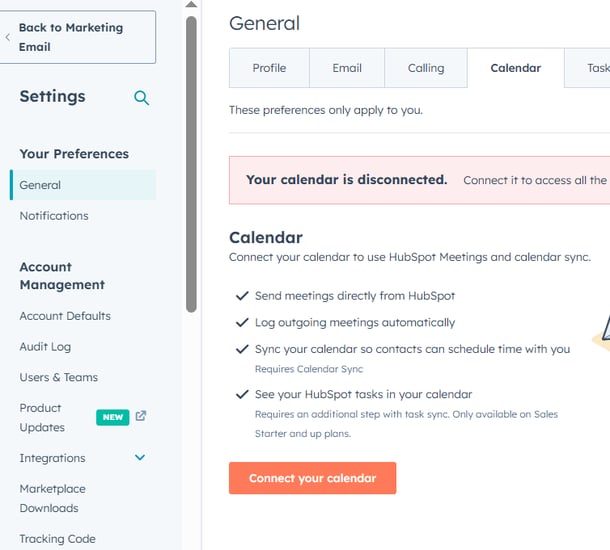
Verify Your Calendar Is Connected
HubSpot pulls appointment data from your connected calendar.
To confirm:
-
Go to Settings > General > Calendar
-
Make sure your calendar (Google or Outlook) is listed and marked as Connected
-
If not connected:
-
Click Connect calendar
-
Follow the prompts to re-authorize
-
Only meetings scheduled while your calendar is connected will sync into HubSpot.
Check the Contact's Activity Timeline Filters
Sometimes the appointment is present but hidden due to filter settings.
-
Go to the contact record
-
Click the Activity tab
-
Use the Filter Activity dropdown
-
Make sure Meetings is checked
If filters are off, HubSpot may be hiding the meeting from view.
Confirm Who Booked the Meeting
If a user scheduled a meeting directly through their calendar (not through HubSpot):
-
HubSpot won’t automatically log it unless the meeting includes:
-
A known HubSpot contact
-
The user’s calendar is connected
-
Email address matches a contact record
-
Encourage users to use HubSpot's scheduling tool or log meetings manually.
Review the Meeting Link Used (If Any)
If the meeting was booked via a HubSpot meeting link, but it's missing:
-
Go to Sales > Meetings
-
Check if the meeting link is active and functioning
-
Review meeting history/logs (HubSpot Pro/Enterprise)
If the meeting link was deleted or inactive, the booking may not have been captured.
Manually Log the Appointment (If Needed)
If the appointment truly didn’t sync:
-
Go to the contact record
-
Click Log > Meeting
-
Enter the meeting details manually
This ensures the appointment is tracked in reports and timelines.
Re-Sync Your Calendar (If Sync Issues Persist)
-
Go to Settings > General > Calendar
-
Disconnect and reconnect your calendar
-
Wait a few minutes and refresh the contact record
-
Check again for the missing meeting
Sync issues can cause temporary visibility gaps — re-authentication often resolves this.
Still Need Help?
If you're still unable to find or restore the missing appointment:
-
Reconfirm calendar sync status
-
Verify the contact’s email address
-
Share a screenshot of your contact record and calendar event
-
Contact HubSpot Support or your system administrator