
Check for Workflow Conflicts
Workflows may be unintentionally overwriting property values.
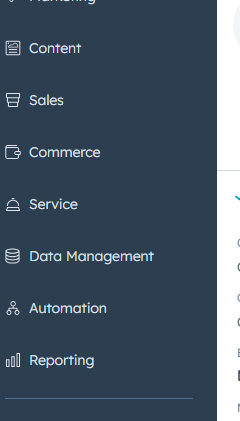
- Navigate to Automation > Workflows.
- Search for any workflows that may be updating the affected property.
- Use the "History" tab inside the workflow to review recent activity and value changes.
Tip: A workflow might reset the property after it's updated elsewhere — check the timing in the history.
Review the Property’s History
You can trace how and when a property was updated.
- Open the contact, company, or deal record.
- Hover over the property and click "View property history".
- Look for:
-
- What system, user, or integration made the last change.
- Whether another process is overwriting your intended update.
Review Property Settings
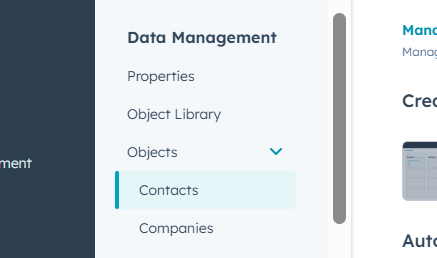
Go to Settings > Properties, and locate the property.
Check for:
- Calculated fields: These update automatically based on rules and can’t be manually edited.
- Read-only fields: Default fields or integration-controlled fields may not allow manual changes.
- Hidden form fields: Ensure the property is actually being passed in a form.
Troubleshooting Forms
If you’re using a form to update a property:
- Confirm the property is included in the form.
- If the field is hidden, verify the default value is correctly configured.
- Ensure “Always create a contact for new email address” is set correctly in the form options.
- Test the form submission to make sure the data is being captured.
Check Integrations and API Updates
If a third-party app or custom integration is involved:
- Check your integration logs for recent activity.
- Verify the app has permission to update the property.
- For API usage, confirm the property name and object type are correct in the payload.
Watch Out for Duplicates
Sometimes a property seems like it didn’t update — but it actually updated on a duplicate record.
- Use HubSpot’s duplicate management tool to review and merge potential duplicates.
- Look for matching contacts or companies with different email addresses or domains.
Try a Manual Update
To isolate the issue:
- Go to the record directly in HubSpot.
- Try updating the property manually.
- If it updates successfully, the problem is likely with a workflow, form, or integration — not the property itself.
Still Stuck?
If you’ve tried all the above and the property still won’t update:
- Contact HubSpot Support if you're on a paid plan.
- Provide:
- Record ID or link
- Property name
- Description of what you expected to happen
- Details of any workflows, forms, or integrations involved