
Common Reasons Associations Go Missing
- Records were manually created without linking them
- Imports didn’t include associated record IDs or email/domain mappings
- Associations were deleted by mistake
- API integrations or third-party apps didn’t pass related data
- Merges removed or replaced prior associations
Step-by-Step: How to Associate Records
Check the Association Panel
To check associations:
- Open the record (contact, deal, etc.)
- Look in the right sidebar under "Associated records".
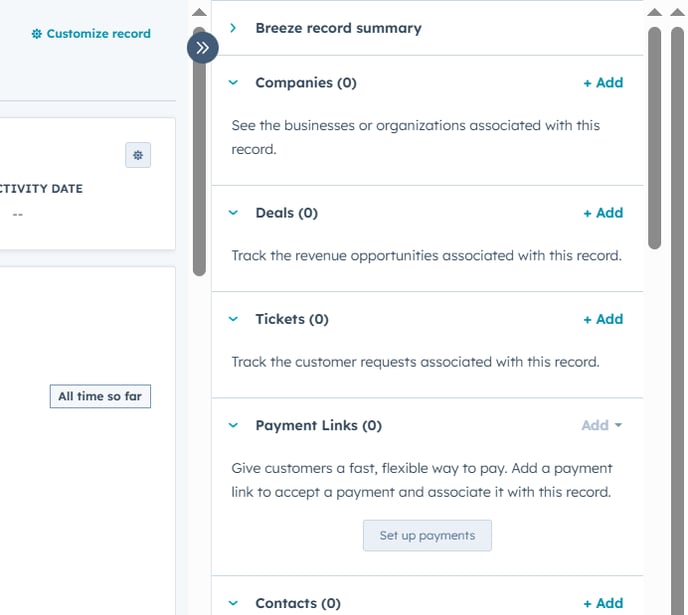
- If expected associations (e.g., company, contact, ticket) are missing → continue below
Manually Associate Records
How to add an association:
- Open the record (e.g., contact)
- In the right sidebar, click “Add” next to the related object (e.g., Add company, Add deal)
- Search for the record to associate and click Save
You can also edit association labels (e.g., "Decision Maker", "Primary Contact") in this panel.
Fix Missing Associations from Import
If you imported data and associations are missing:
- For Contacts ↔ Companies:
-
- Use a shared Company Domain Name field (e.g.,
@company.com) to auto-associate during import
- Use a shared Company Domain Name field (e.g.,
- For Contacts/Deals/Tickets ↔ other objects:
- Use Record IDs in the import file
- Make sure the correct association column headers are used (e.g., "Associated Company ID")
Fix:
- Re-import your data with proper association fields and IDs
- Use HubSpot’s import wizard to confirm associations before uploading
Use Workflows (Pro/Enterprise) to Auto-Associate
If records regularly come in without associations:
- Create a workflow to auto-associate records:
- E.g., assign a contact to a company based on domain
- Link new deals to the deal owner's contacts
Restore Lost Associations After a Merge
When records are merged, HubSpot usually retains most recent associations, but some can be dropped.
Fix:
- Open the merged record
- Re-check associations manually
- Add back any missing links from the original record (check timeline history for clues)
Pro Tip: Use Filters to Find Unassociated Records
Create views for unassociated records:
- Unassociated Contacts:
-
- Filter:
Associated company is unknown
- Filter:
- Deals with no contact:
- Filter:
Associated contacts is unknown
- Filter:
This helps you find and fix data gaps quickly.
Still Missing Associations?
If you're still seeing issues:
- Check if a third-party app or API integration is overriding associations
- Review activity in the Record's History (click Actions > View property history)
- Ask your HubSpot Admin to audit recent imports, merges, or deletions