
Navigate to the Invoices Page
- In your HubSpot account, go to the Commerce section in the top navigation menu.
- Select Invoices from the dropdown menu to view all the invoices in your account.
Find the Invoice You Want to Edit
- On the Invoices page, use the search bar or filter options to locate the invoice you want to edit.
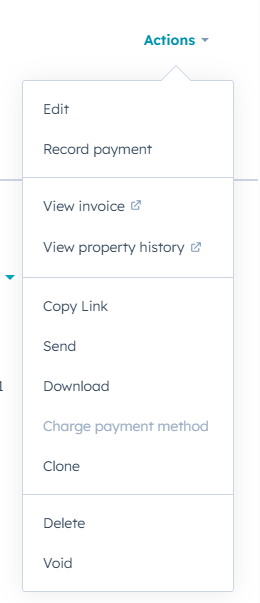
- Click on the Invoice you wish to edit to open its detailed view.
Edit the Invoice Details
Once the invoice is open, you can edit the following details:
- Invoice Number: Change the invoice number if necessary (if it hasn’t been finalized yet).
- Invoice Date: Update the date of issue.
- Due Date: Modify the payment due date.
- Billing Contact: Change the contact associated with the invoice if needed.
- Line Items: Add, remove, or adjust the products/services on the invoice.
- To edit line items, click the Edit icon next to the line item.
- You can adjust quantities, prices, or remove items from the invoice.
- Payment Terms: Edit the payment terms if required.
- Custom Fields: Update any custom fields that you’ve added to the invoice template.
Save Changes
After making the necessary changes:
- Review the updated invoice to ensure everything is correct.
- Click the Save button to apply the changes to the invoice.
Finalize the Invoice (if not already done)
If the invoice was not finalized yet:
- After editing, click Finalize to complete the invoice.
- You can then proceed to send the invoice via email or download it as a PDF.
Additional Tips
- Invoice Customization: If you need to make further changes to the invoice template itself (e.g., adding custom fields or adjusting the layout), navigate to Settings > Objects > Invoices > Templates and modify the template settings.
- Automated Changes: If you're using automated invoicing or recurring invoices, make sure to review your automation settings under Settings > Objects > Invoices > Automation to ensure that any new changes reflect in the automated process.
Need Help?
If you encounter any issues while editing invoices or need assistance with other invoice-related tasks, feel free to contact HubSpot Support for further assistance.