
Navigate to the Reports Tool
-
In your HubSpot account, go to:
Reports > Reports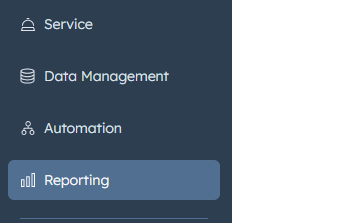
-
You’ll see a list of all reports you’ve created or have access to.
Find the Report You Want to Edit
-
Use the search bar or filters to find your report.
-
Hover over the report name, then click the Actions menu (⋯).
-
Select Edit.
Note: If you don’t see the “Edit” option, it may be a prebuilt HubSpot report. In that case, you’ll need to clone it first (see Tip below).
Make Your Edits
Once you're in the report builder:
You can:
- Change filters (e.g., deal stage, date range, owner)
- Add or remove properties (e.g., contact source, company name)
- Adjust visualization type (e.g., bar chart, pie chart, table)
- Group data by different values (e.g., by month, by team)
- Rename the report if needed
Use the right-hand panels to modify:
-
Filters
-
X and Y axes
-
Data sources (if available)
-
Display options
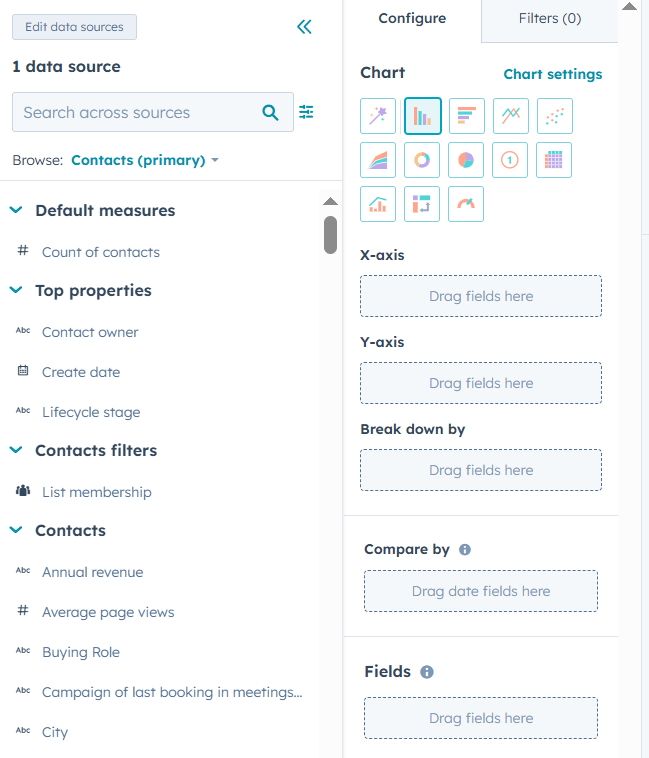
Tip: Click Preview to see how your changes affect the data in real time.
Save or Update the Report
Once you’ve made your changes:
-
Click Update (if editing an existing report)
-
Or click Save as new if you want to preserve the original version
You’ll have the option to:
-
Add the report to a dashboard
-
Set visibility (private, shared with your team, or public)
Pro Tip: Can’t Edit? Try Cloning
If the report is read-only (e.g., a default HubSpot report):
-
Go to the report list.
-
Click Actions > Clone.
-
Open the cloned version and click Edit.
-
Make changes, then Save or Add to a Dashboard.
You’re Done!
Your updated report is now live and available in:
-
Reports > Reports
-
Any dashboards it’s been added to