
Navigate to the Invoices Page
- In your HubSpot account, go to the Commerce section in the top navigation bar.
- Select Invoices from the dropdown to view your list of invoices.
Find the Invoice You Want to Delete
- On the Invoices page, use the search bar or filters to locate the invoice you want to delete.
- Click on the Invoice to open the detailed view.
Delete the Invoice
- Once the invoice is open, click on the Actions dropdown located at the top right of the invoice.
- From the dropdown, select Delete.
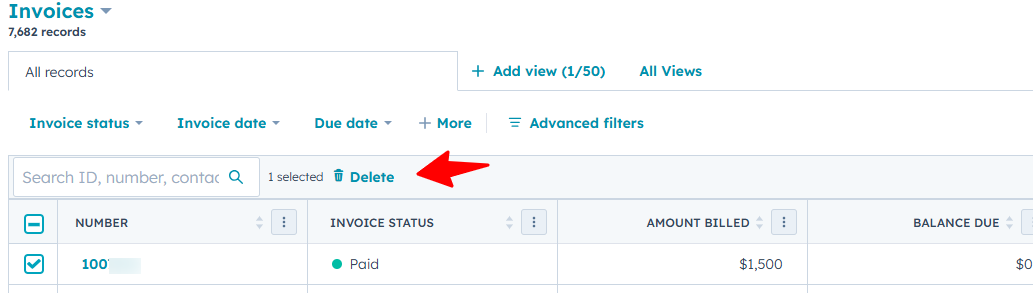
Confirm Deletion
- A confirmation popup will appear, asking you to confirm the deletion.
- Click Yes, delete to permanently remove the invoice from HubSpot.
Check for Final Confirmation
Once deleted, the invoice will no longer appear in your invoice list. Ensure that the invoice has been removed and that it no longer appears in any related contact, company, or deal records.
Additional Notes
- Deleted invoices cannot be recovered, so be sure before confirming the deletion.
- If the invoice was paid or processed through HubSpot Payments, it may still appear in payment history, but it will no longer be listed as an active invoice.
Need Help?
If you encounter any issues while deleting an invoice or if you need to recover any deleted data, feel free to reach out to HubSpot Support for further assistance.