
Access the Invoices Tool
- In your HubSpot account, go to Commerce in the top menu and select Invoices.
- On the Invoices page, click the Create invoice button in the upper right corner.
Select the Type of Invoice
When creating an invoice, you can choose between two types:
- One-time invoice: For single transactions.
- Subscription invoice: For recurring billing.
Select the appropriate invoice type for your needs.
Add Invoice Details
You’ll need to fill in the following details for your invoice:
- Invoice Number: This can be auto-generated or you can manually enter a number.
- Invoice Date: The date the invoice is issued.
- Due Date: Specify when the payment is due.
- Billing Contact: Select the contact who is being billed.
- Line Items: Add the products or services that you are invoicing for.
- Payment Terms: Define payment conditions (e.g., Net 30, due upon receipt).
- Payment Method: Choose between HubSpot Payments or Stripe as the payment method.
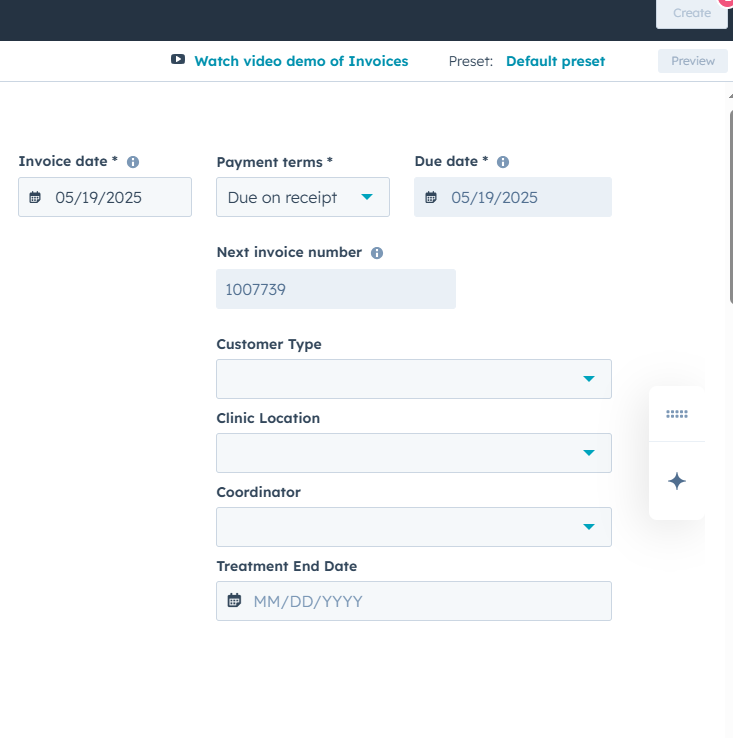
Customize the Invoice (Optional)
HubSpot allows customization of your invoice to align with your brand. You can:
- Add custom fields (e.g., text, checkboxes, or dropdowns).
- Modify the default invoice template.
To add custom fields:
- Go to Settings > Objects > Invoices > Templates.
- Click Set Default Custom Fields.
- Click Edit default custom fields and then Add custom field.
- Choose the field type you want to add and save.
Finalize and Send the Invoice
After reviewing all the details:
- Click Finalize to complete the invoice.
- You can either:
-
- Send via email directly from HubSpot.
- Download as PDF to manually distribute the invoice.
Managing Invoices
You can manage and track all your invoices from the Invoices page in HubSpot.
- Navigate to Commerce > Invoices.
- Click on a specific invoice to view or edit it.
- Use the Actions dropdown to:
-
- Edit invoice details.
- Download the invoice as a PDF.
- Clone or delete invoices.
- Charge the customer’s payment method.
- Void the invoice if needed.
Automating Invoice Creation (Optional)
HubSpot allows you to automate the creation of invoices, either for one-time payments or subscriptions:
- Go to Settings > Objects > Invoices > Automation.
- Toggle on automation for one-time payments and subscriptions.
This will allow HubSpot to automatically generate invoices for payments and recurring subscriptions.