
How Do I Create a Task in HubSpot?
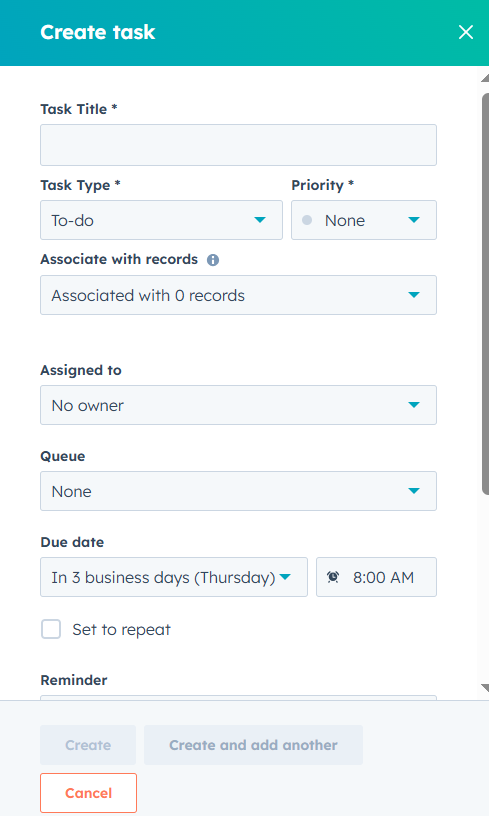
- Navigate to Sales > Tasks or open a contact, company, deal, or ticket record.
- Click Create task.
- Fill in task details such as:
-
- Title
- Type (Call, Email, To-do, Meeting)
- Due date
- Priority
- Assign it to yourself or another user.
- Click Create to save.
How Do I Assign a Task to a Teammate?
- Open the task or create a new one.
- In the Assigned to field, select the teammate from the dropdown.
- Set a due date and priority if needed.
- Click Save.
How Do I Complete a Task?
- Go to Tasks in the top menu.
- Locate your task under Due Today, Upcoming, or use filters.
- Click the checkbox next to the task to mark it as Complete.
- You can also add notes or outcomes before completing if required.
How Do I Automate Task Creation via Workflow?
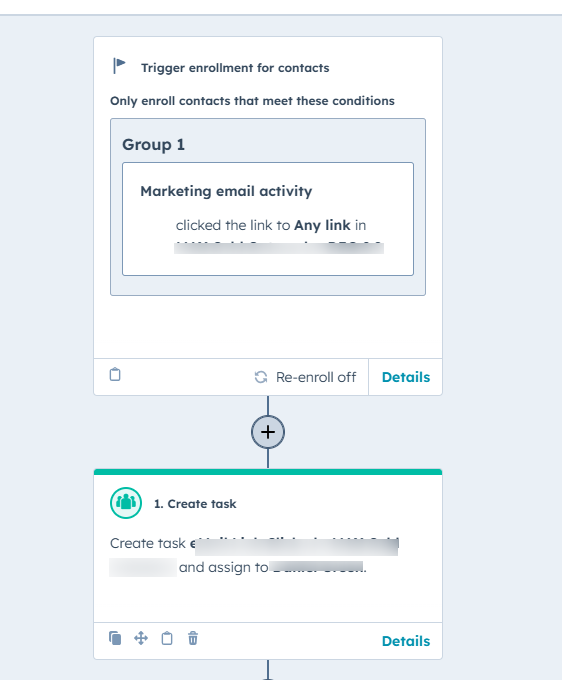
- Navigate to Automation > Workflows.
- Create or edit a workflow.
- Add an action and select Create task.
- Define task details like title, due date, and assignee.
- Save and turn on the workflow to begin automatic task creation.
How Do I Log a Call or Email in a Record?
- Open a Contact, Company, or Deal record.
- Use the Call or Email tab in the activity timeline.
- Fill in the relevant details.
- Click Log to save the activity.
How Do I Move a Deal to the Next Stage?
- Go to Sales > Deals.
- Open the deal or drag it across your pipeline board.
- Drop it into the next stage or click Edit to change the stage manually.
- Save changes.
How Do I Update or Edit a Workflow?
- Navigate to Automation > Workflows.
- Click the name of the workflow you want to update.
- Make your edits (e.g., change triggers, actions, or delays).
- Click Review and update or Save to apply the changes.
How Do I Assign Tasks Based on Workflow Triggers?
- In your workflow editor, add a Create Task action.
- Set criteria for who the task is assigned to (e.g., contact owner).
- Customize the task type and due date.
- Save and activate your workflow.
Need Help?
If you're stuck on a workflow or task, contact your internal admin or reach out to HubSpot Support for personalized assistance.