
How Do I Create a New Contact in HubSpot?
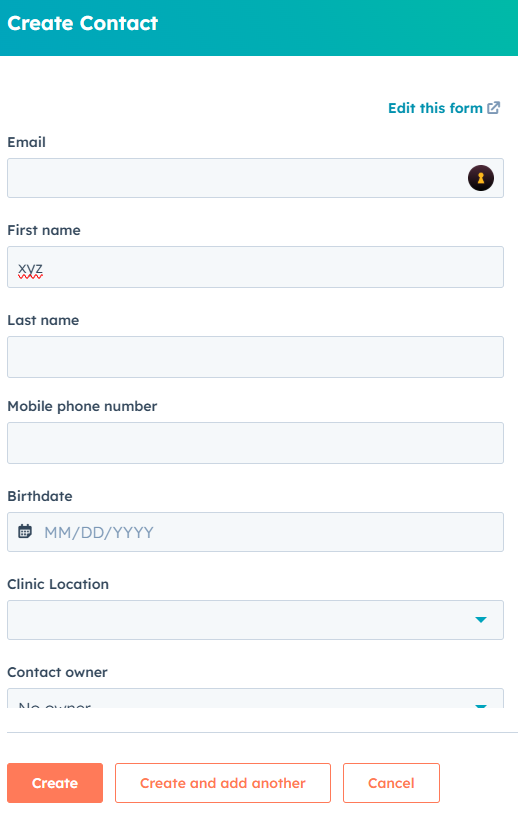
- Navigate to Contacts: In your HubSpot account, go to Contacts from the main navigation bar.
- Create Contact: Click the Create Contact button in the top right corner.
- Enter Contact Details: Fill in the necessary details such as name, email, phone number, etc.
- Save: Click the Create Contact button to save the contact to your HubSpot account.
How Do I Add a New Deal?
- Go to Deals: Navigate to Sales > Deals in the top menu.
- Create Deal: Click the Create Deal button.
- Enter Deal Information: Input details like deal name, associated contacts, deal stage, and pipeline.
- Save: Click Create Deal to save the deal to your pipeline.
How Do I Set Up a Workflow in HubSpot?
- Navigate to Automation: Go to Automation > Workflows.
- Create Workflow: Click Create Workflow.
- Select Type: Choose the type of workflow (e.g., Contact-based, Deal-based).
- Set Triggers and Actions: Set the workflow’s triggers (e.g., form submissions, property changes) and define the actions (e.g., send email, assign task).
- Activate: Review your settings and click Turn On to activate the workflow.
How Do I Create a Report in HubSpot?
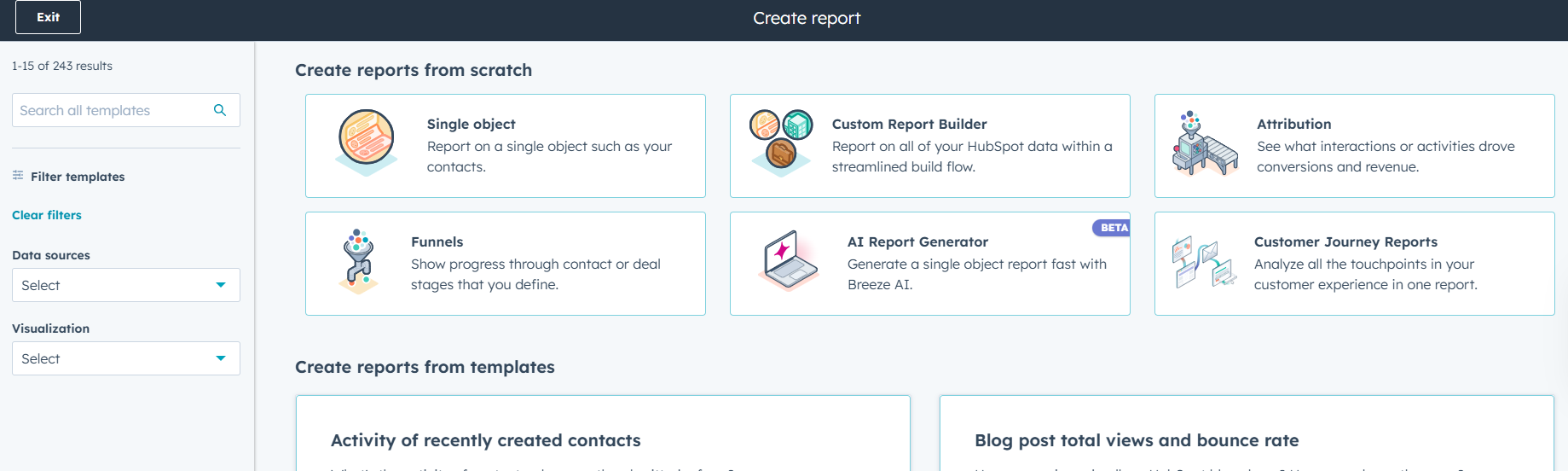
- Go to Reports: Navigate to Reports > Reports in the top menu.
- Create Report: Click Create Report.
- Select Report Type: Choose the type of report (e.g., Contacts, Deals, Sales Performance).
- Customize: Choose your filters, properties, and visualization type.
- Save and Share: Once you’re happy with the report, click Save and share it with the team if needed.
How Do I Manage User Permissions in HubSpot?
- Navigate to Settings: Go to Settings > Users & Teams.
- Select User: Find and select the user whose permissions you need to adjust.
- Edit Permissions: Modify the user’s access to features (e.g., contacts, workflows, deals).
- Save: After making necessary adjustments, click Save to update their permissions.
How Do I Create Custom Properties in HubSpot?
- Go to Settings: Navigate to Settings > Properties.
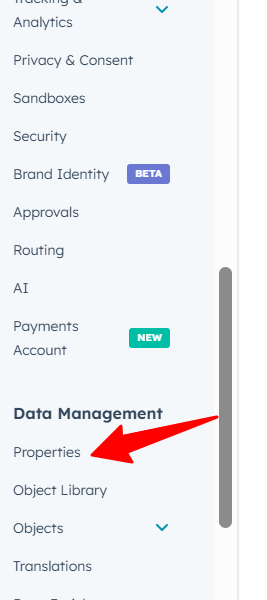
- Choose Object: Select the object (e.g., Contacts, Deals) for which you want to create a custom property.
- Create Property: Click Create Property.
- Enter Property Information: Choose the property type (e.g., dropdown, date field) and enter the necessary details.
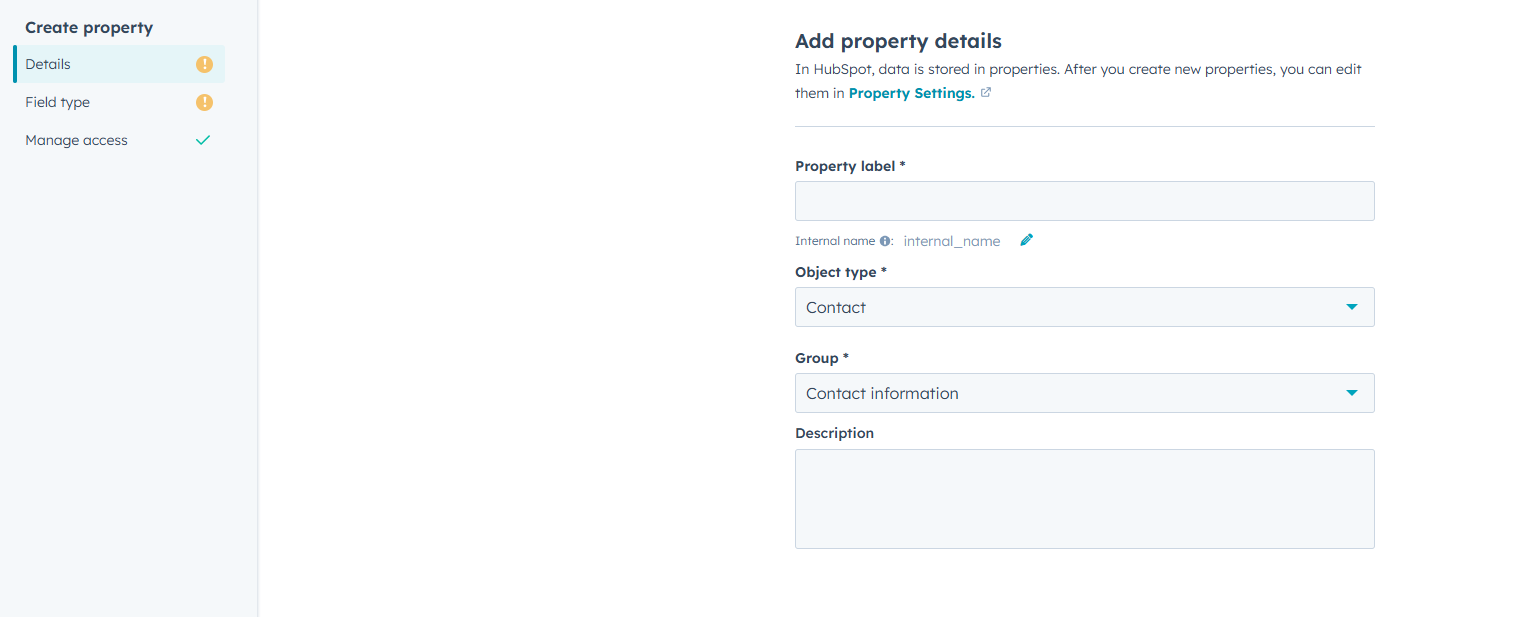
- Save: Click Save to create the custom property.
How Do I Clean Up My HubSpot Account?
Merge Duplicates: Use HubSpot’s duplicate management tools to merge contacts, companies, or deals.
Delete Old Records: Remove outdated or unnecessary records such as tasks, notes, or emails.
Review Workflows: Clean up inactive or outdated workflows that are no longer in use.
Remove Unused Properties: Delete any unused properties or custom fields that are cluttering your account.
How Do I Integrate HubSpot with Other Tools?
- Navigate to Integrations: Go to Settings > Integrations > Connected Apps.
- Search for the App: Find the third-party tool you want to integrate with HubSpot.
- Follow Setup Steps: Follow the instructions to authenticate and connect the tool.
- Configure Settings: After connecting, configure any specific settings for the integration.
- Save: Once the integration is complete, click Save.
Need More Help?
If you have a specific "How Do I?" question or need additional assistance with a HubSpot feature, feel free to reach out to HubSpot Support or consult the HubSpot Community for further guidance.